
Ace Combat 8 FOV Settings
There is no built-in FOV slider. On PC, the FOV Change community mod can change cockpit, HUD and third-person fields of view in the campaign. It requires an offline launch that disables Easy Anti-Cheat. It is not a way to change the camera while playing Ace Combat Online.
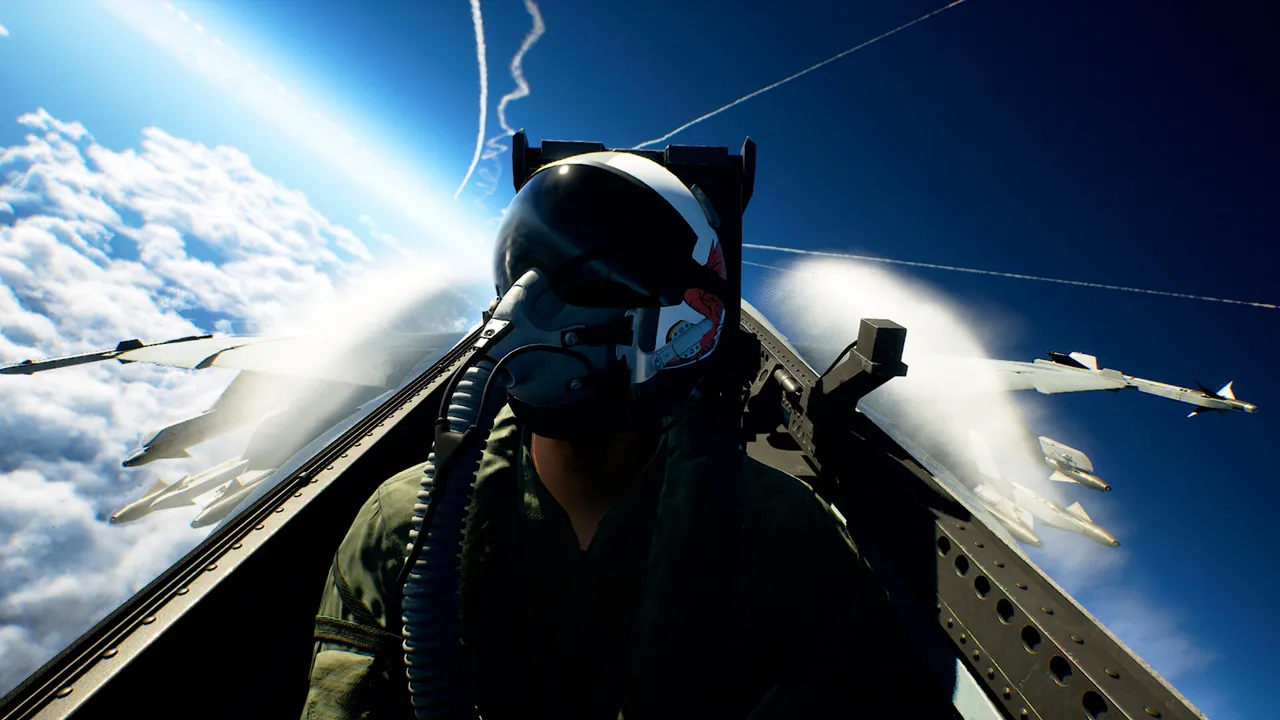
Set up the campaign mod
- 1
Start with an unmodified campaign
Confirm a mission runs before adding a mod. If it already crashes, use the PC crash checks first. Note your current Steam launch options and back up any files the package will replace. - 2
Get the original FOV Change package
Download from the author's download and installation page. Use the AC8 package, not an AC7 FOV tutorial. Read its current instructions before replacing an existing mod loader. - 3
Use the offline launch option
Copy the complete Steam launch argument from the author's installation instructions into the game's Steam Properties. This selects the package's offline anti-cheat configuration. Keep your original launch options separately so you can restore them. - 4
Install and edit the configuration
Put the package in the game's root directory as instructed. The settings file isGame\Binaries\Win64\AC8FOV\FOV.ini. Edit the desired values there, then launch through Steam. Change one camera setting at a time and keep a copy of the original configuration. - 5
Check the view in a campaign mission
Compare cockpit, HUD and third-person views. A wider view changes how large distant targets look; use a value that lets you read the HUD and aim comfortably. There is no universal best number for every monitor or player.
Before returning to multiplayer
- 1
Close the game
Make configuration changes with AC8 closed. Keep your saves separate from mod cleanup; camera changes do not require deleting saves. - 2
Remove the FOV package and offline argument
Follow the package's uninstall instructions and remove the launch argument added for offline play. Restore your previous launch options. Do not remove shared loader files blindly if another mod also uses them. - 3
Check a clean launch
Start through Steam with EAC enabled. If you cannot restore a clean installation, use Steam's file verification alongside removal of extra mod files: verification alone may leave added files behind. For connection codes after a clean launch, use online error diagnosis.
If the view did not change
Check that the package is for AC8, the configuration is in the installed game directory, and you launched through Steam with the matching argument. Revert the last change if the game stops launching. Do not keep adding loaders or copying AC7 files until you have a working baseline.
Camera width does not remap a controller. Use the camera and control modes for native settings, or HOTAS detection and bindings if your axes or buttons are the problem.