
Ace Combat 8 HOTAS Support
Some sticks work, but custom configuration is limited. A detected joystick is not a promise that every button or axis can be reassigned. Bandai Namco is working on improvements toward the AC7 flight-stick experience, without a release date. Start with the symptom below before buying another stick or changing game files.
What is your stick doing?
Check detection before changing bindings
Close the game, connect the stick and throttle, then open Windows Game Controllers (Win + R, joy.cpl). Check that axes and buttons respond there. If Windows cannot see the device, fix its USB connection or manufacturer driver first. If Windows sees it but AC8 does not, that is a separate game-side compatibility problem.
Run the unmodified-game checks →First, test the unmodified game
- 1
Check Windows can see the hardware
With the game closed, connect your controllers. Press Win + R, enterjoy.cpland open the device's Properties. Watch each axis and button respond. Use the manufacturer's driver and calibration instructions if something is missing. - 2
Keep the test setup simple
For diagnosis, try your stick and throttle without extra controllers or virtual-input tools. Restart the game after reconnecting hardware. Change one thing at a time so you can tell which input path changed. - 3
Test flight actions separately
Check pitch, roll, yaw, throttle, gun, missile and target switching in a campaign mission. Menus alone do not test all flight axes. Use Standard or Expert controls consistently while comparing results. - 4
Record the exact failure
Write down your device model, platform, whether Windows sees it, and which axes or buttons fail in AC8. Device not found, wrong direction and missing remapping need different fixes.
Native input or a community mapper?
| Question | Unmodified AC8 | AC8HOTAS community mod |
|---|---|---|
| How does it bind? | Device-dependent native profile; custom configuration is limited. | Assign detected device inputs to game actions in bindings.lua. |
| Stick, throttle and pedals? | Recognition varies by device and platform. | Can map multiple detected devices directly, without a combined virtual joystick. |
| Apply a changed binding? | Depends on the available game options. | Save and press F5; adding a device may also need a USB reconnect. Unsupported action slots are rejected. |
| Online use? | The normal input path for online play. | Only offline testing is documented. Do not treat it as approved for anti-cheat protected play. |
| After a game update? | Check for changed official support. | Compatibility can break; the optional native yaw hook can cause crashes. |
The mapper is a community workaround, separate from the publisher's planned improvements. If the game already crashes without mods, work through PC crash checks first. A mapping mod does not repair a graphics or memory problem.
How the community binding file works
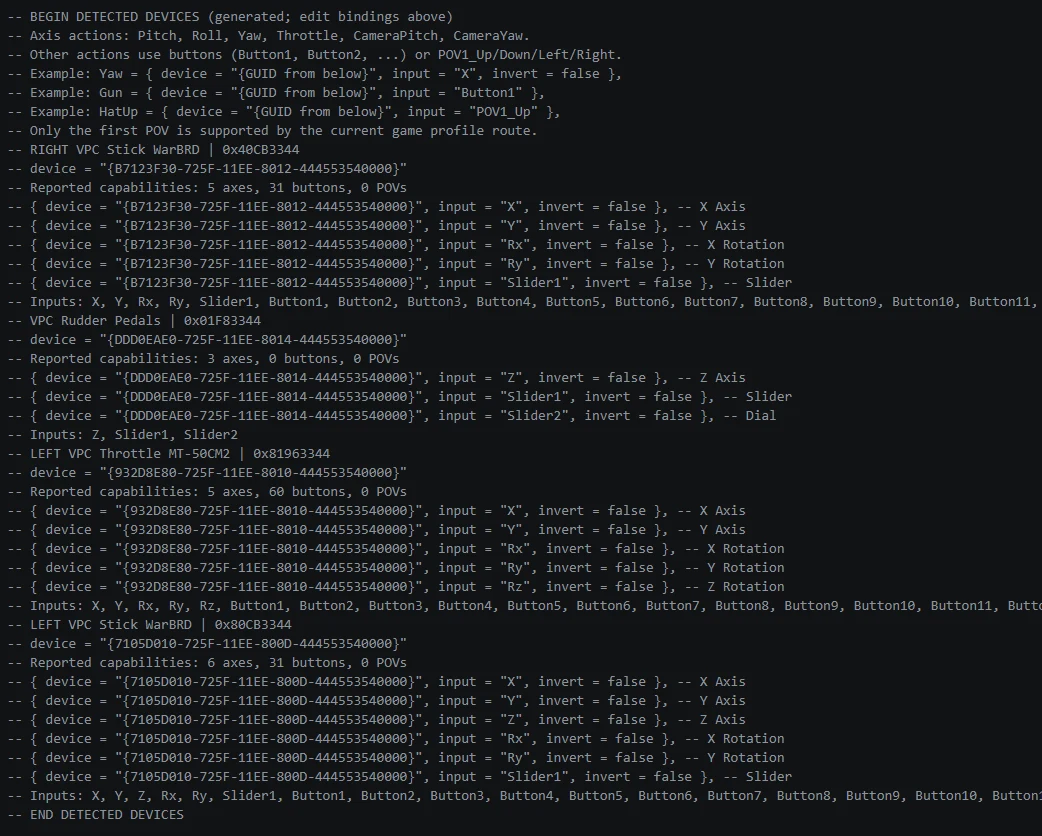
This Windows x64 release was tested with UE4SS v3.0.1 Beta (commit 03dbd5c0). Other loader builds are outside that tested setup. The full-install package is for a fresh installation without an existing UE4SS loader; mod-only downloads need that loader separately. Follow the matching package guide and back up bindings.lua before updating. Start once with your controllers connected: the generated device section lists the axes, buttons and hats you can copy into the editable action section. These screenshots show an example setup, not identifiers to paste into your own file.
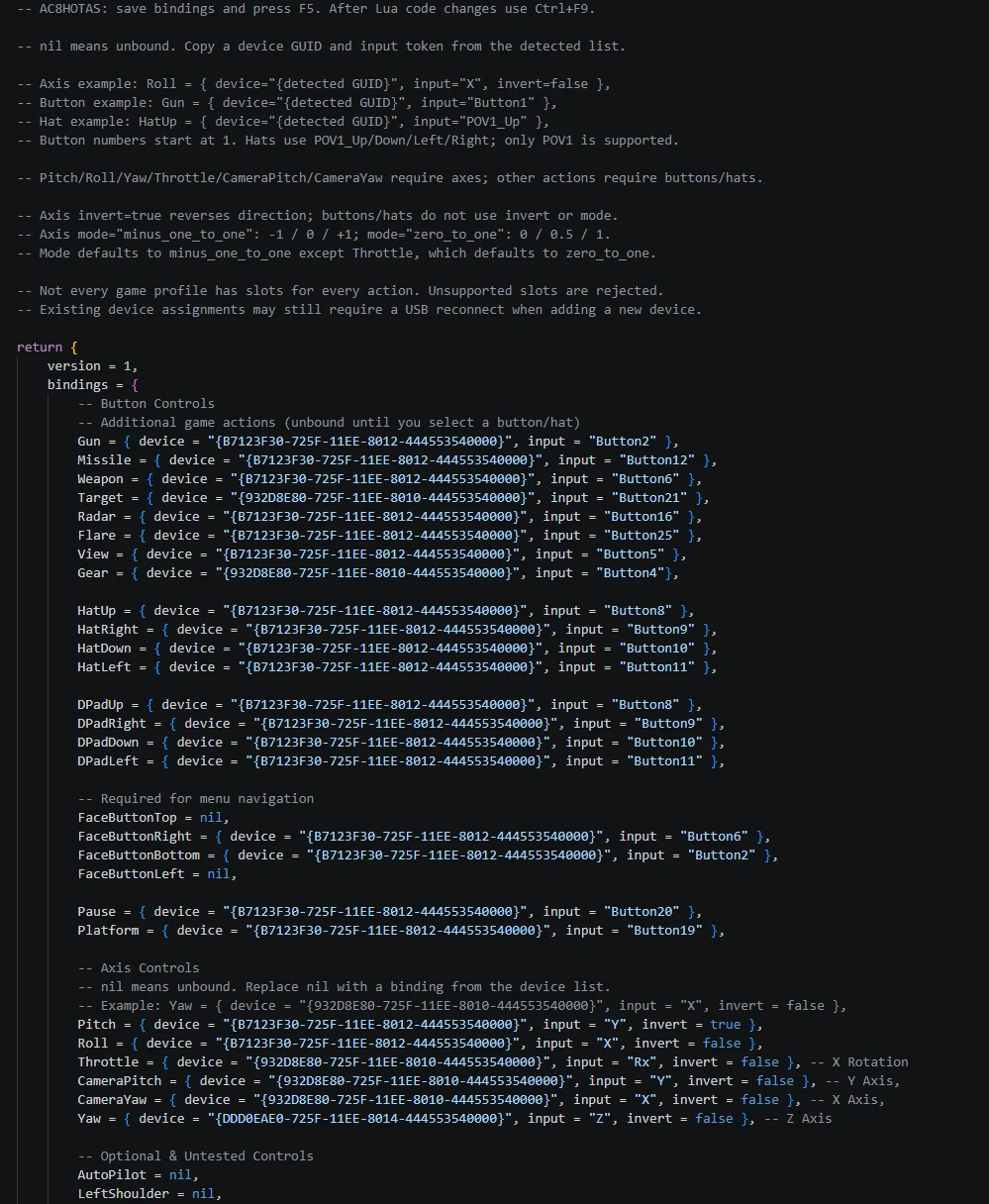
- Throttle takes a continuous axis; AccelDecel is a button command.
- invert=true reverses an axis. A button or hat does not use inversion.
- nil leaves an action unbound; the download starts with actions unbound.
- Some native profiles lack slots for particular actions. Rejected configurations keep the previous mapping; check the newest AC8HOTAS/HOTAS-*.log. A restart may select another profile, but does not guarantee a usable slot.
- Only the first POV hat is supported; axis deadzones are not configurable.
- Separate controllers with the same product ID cannot currently be mapped independently.
Custom bindings do not themselves change the game's yaw response. The optional AC8AnalogYaw mod handles proportional yaw; if a game update makes it incompatible, disable that mod and restart. F5 refreshes configuration, not native DLLs.
Open AC8HOTAS downloads and installation instructions. Use the original package instructions rather than an AC7 tutorial. For online sorties, keep a clean, unmodified setup; connection errors and lockouts need a different diagnosis.